
Advanced search has three major parts that allow you to add search terms. Some are useful, some are not, and some are not used at all. Let’s begin with this video overview.
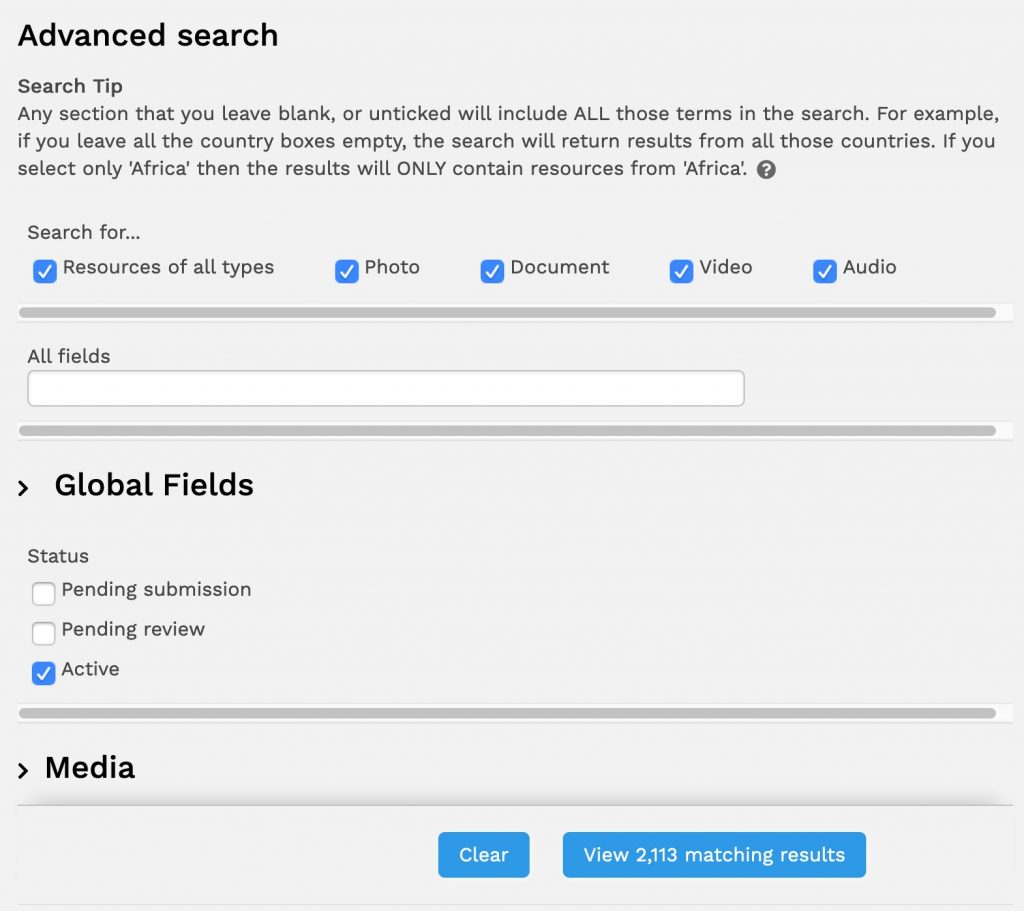
The top of this window has the same search options as the Simple Search on the homepage. In the “All fields” textbox you enter search terms that will be applied to all fields. This isn’t the best when a date or year is involved. Use the date field for that.
Pay attention to the blue button at the bottom right. That tells you how many resources have been found against the current search terms you entered. Which here above are none. The 2,113 number that is showing is the total of all resources. This number changes as you add search terms, it begins to get smaller. There’s no Search button. You simply add search terms and it finds the resources that match and displays the number in the blue button. When you are done adding search terms simply click the View button. Now let’s look at the Global Fields search parameters.
The Global Fields section is broken into 3 parts for discussion purposes.
Global Fields – Part 1
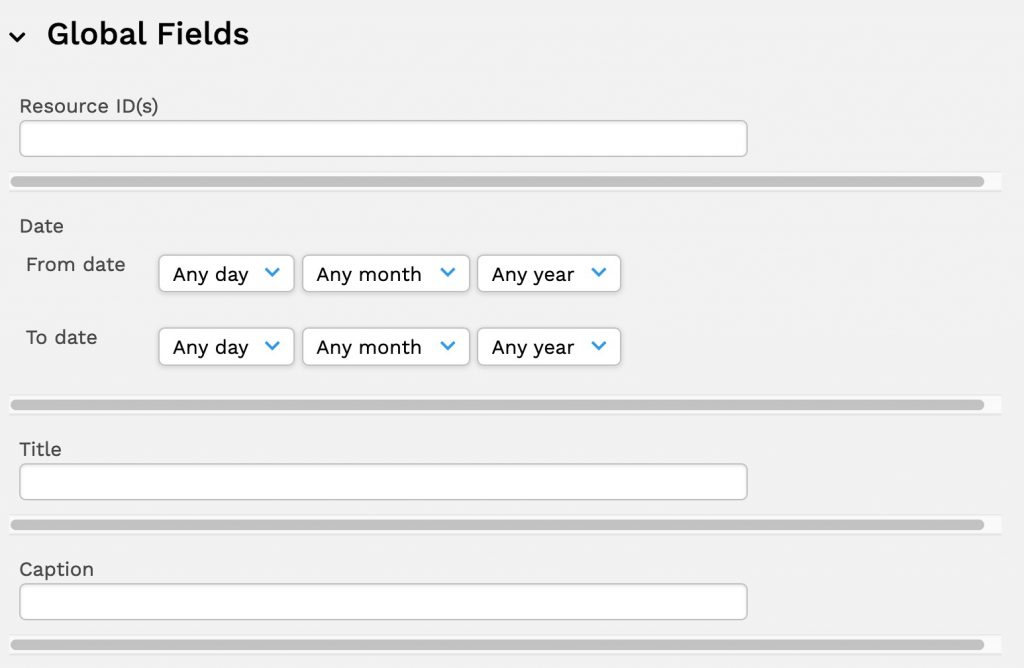
The Resource ID is the unique ID for a resource. You won’t know that unless you are keeping a record of them for some reason.
The Date section lets you search on a range of dates. This is an important search function. All resources are dated on some way. All scanned slides have been entered as 1/1/YYYY where YYYY is the year they were identified as belonging to. If you are looking for resources from 1976 you would enter that year as both the “From date” and the “To date”. The day and month dates will apply only to digital files because they have the correct dates recorded at the time the photo is taken with the digital camera.
The “Title” field may be useful. Here’s why. For the scanned slides this almost always has the year. That’s how we entered them. Digital camera images allows more flexibility in tagging photos as the date is embedded in the file itself. We don’t touch the date data. In this case we entered something like “Wrestling”. This means you can combine a title with a year and get more refined results.
The “Caption” field holds description. A few words, a sentence, or maybe a couple of sentences. You’d have to know what you’re looking for or just take a guess.
Global Fields – Part 2 – Keywords: Special, Event, and Activity
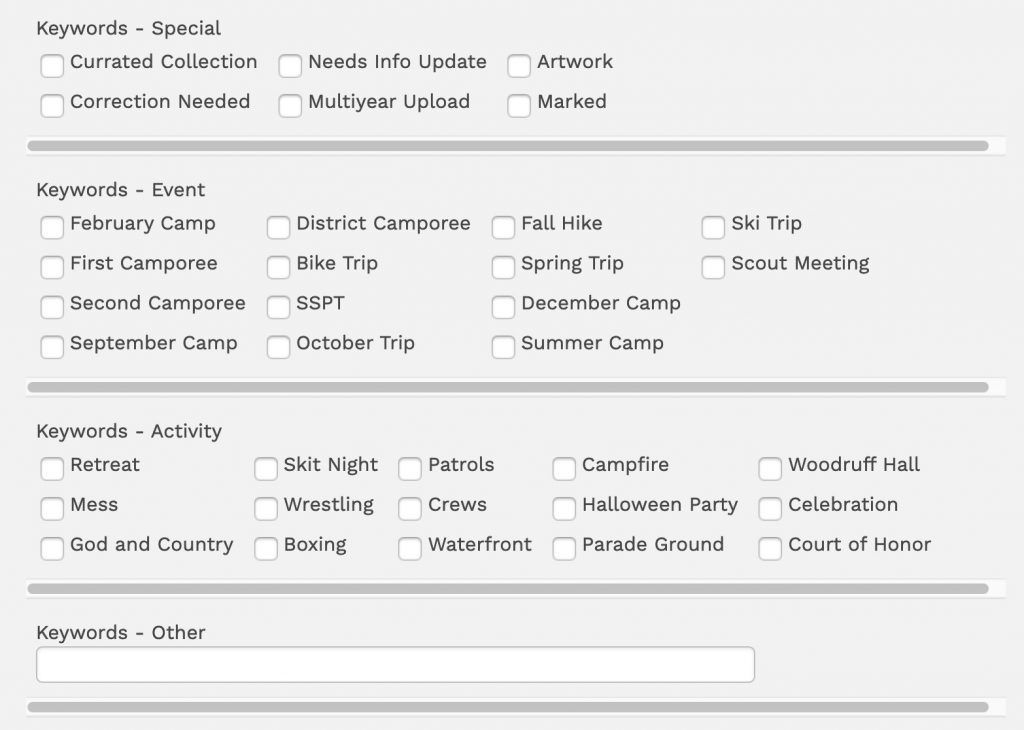
You will likely see changes in the above as we move forward.
You can refine your search using the checkboxes above. Keep in mind the the blue button at the bottom will update with the number of resources found everytime you select or deselect a checkbox.
At this point in time as we publish this site we have very little of the above checkboxes identified. This is where you, the alumni, come in. Please help us identify the who, what, where, and when of these resources. If you are willing to do that ask to have your user account set to have access to those privileges.
Keywords – Other: this field is a collection bucket for anything that does not fit into the above checkbox system. What is in there? There’s no system to it but there are some clues. If you click on an image you will find a section at the bottom titled “Search for similar resources”. There you will find keywords used in related images.
Global Fields – Part 3 – Miscellaneous Search Terms
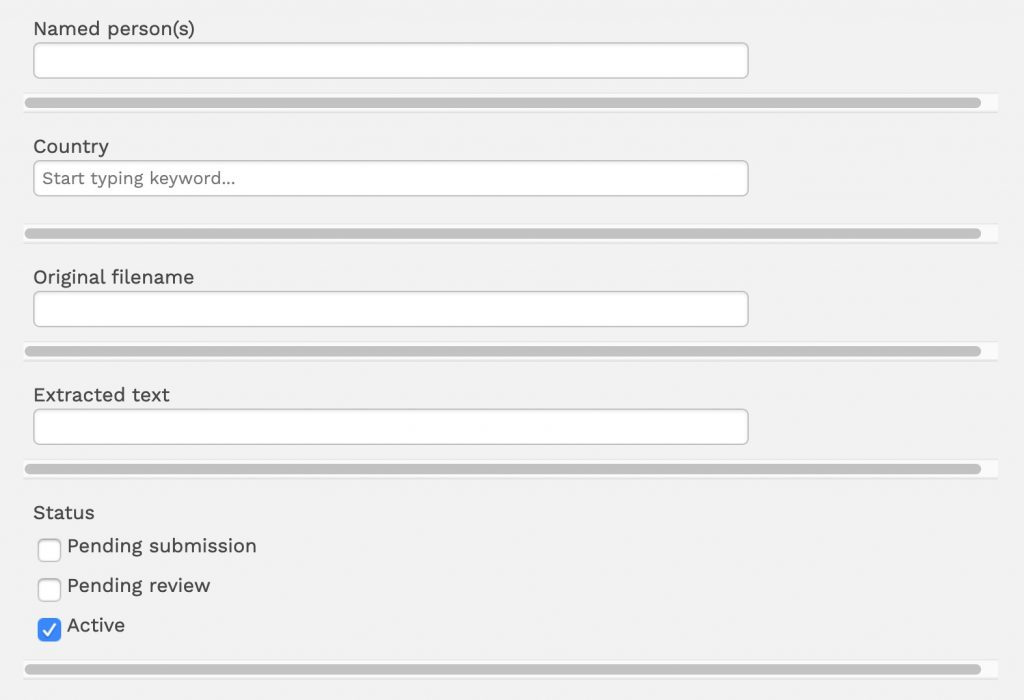
Named person(s): there is very little data in this field at present. Once again we are asking you, the alumni, to help us out here. To do so you’ll need to get your user account upgraded to the privilege level to do that.
Country: not so useful as almost all the images are in the United States. On exception is Bermuda. There may be others.
Original filename: this is recorded in the database should it be useful.
Extracted text: not used.
Status: will always be Active.
Media Section
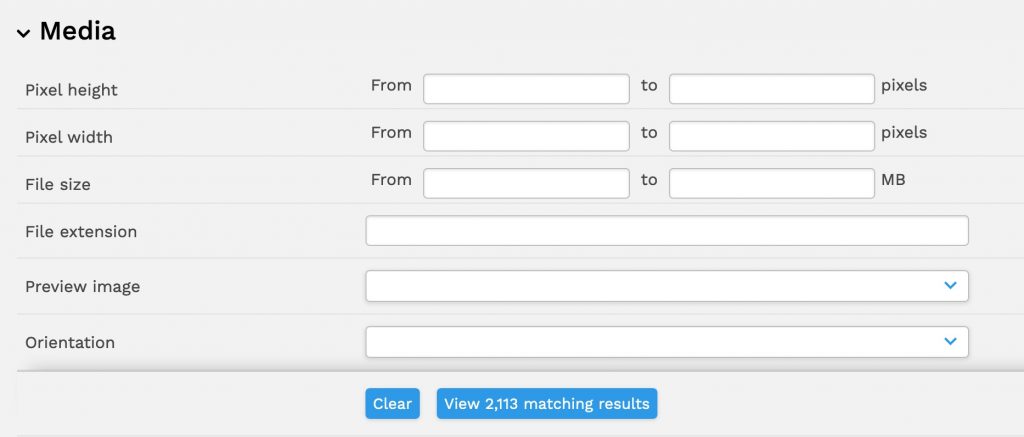
This section is not being used and it probably won’t be. The fields are self-explanatory. Use them as you see fit.