Creating Personalized Collections
In three steps you can create your own collection of resources. These collections are saved to your user profile and available whenever you login. Listed below are the steps.
- Create a new collection and give it a name.
- Find the images you want to add to the new collection.
- Add the images to the collection by using the Actions menu.
Step 1 – Create a new collection.
The bottom of the pages is the “collection bar”. Everything you want to do with collections can be found here. It displays in two different ways. They are with “Show thumbs” enabled or disabled. Clicking on that toggles between the two.

Click on “Default Collection” to reveal “(Create new collection)”. Select that.

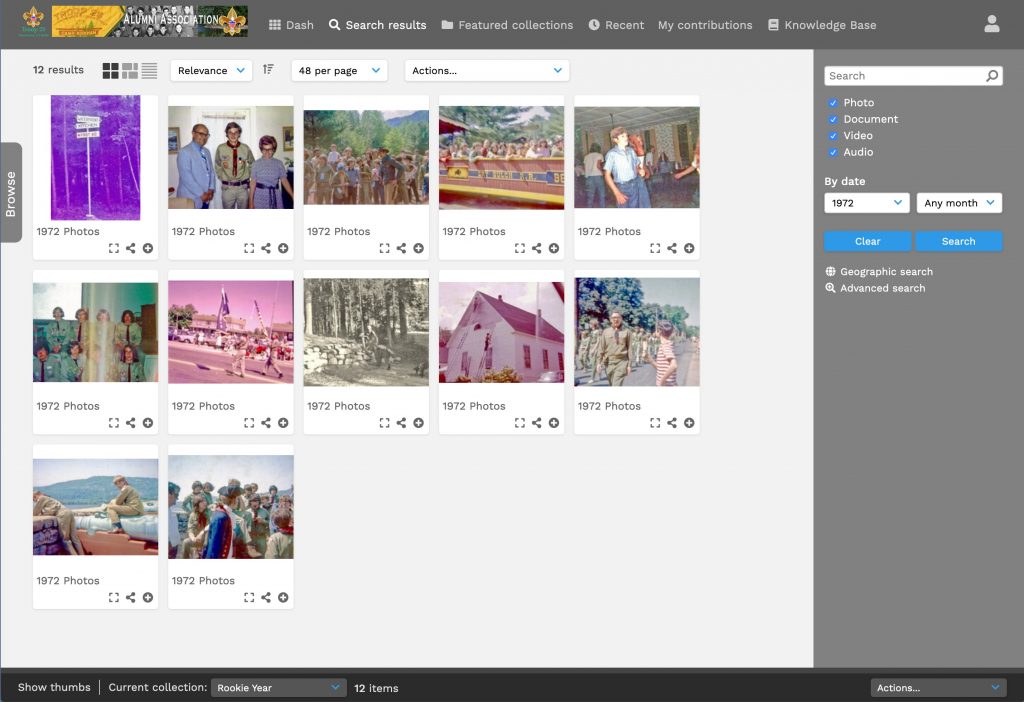
Type a name for the collection into the text box and hit the return key. In the example below a collection named “Rookie year” has been created. Note that it shows “0 items” in this collection.

Step 2 – Find resources to add to the collection.
Next search for the resources you want to add to the collection.
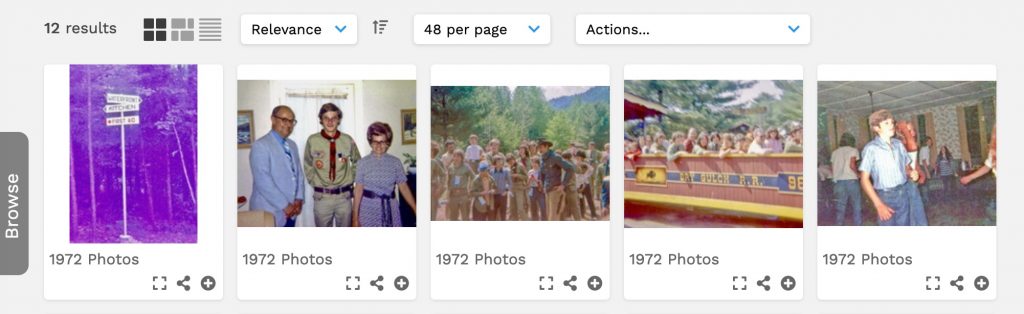
Searching using the “By date” popup for the year 1972 has found 12 images. Next add these to the newly created collection “Rookie Year”.
Step 3 – Adding found resources to the collection.
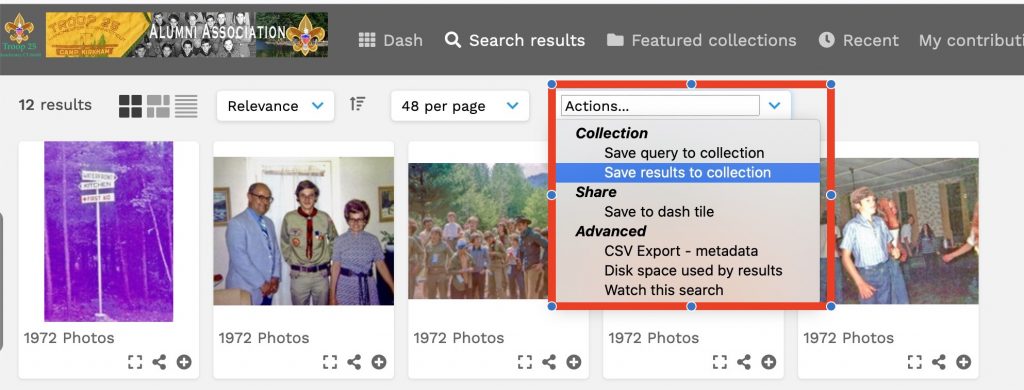
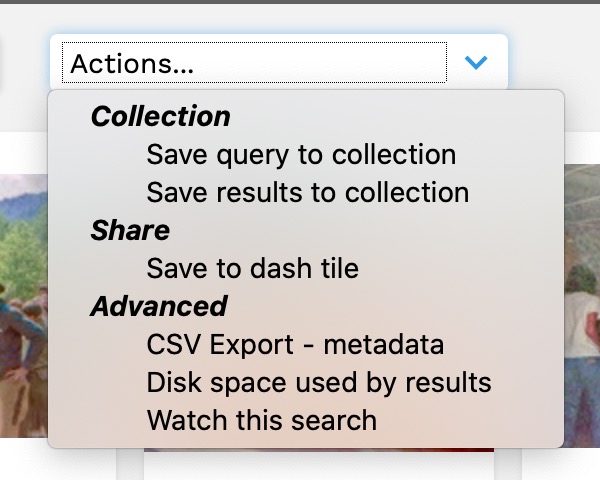
From the “Actions” drop down menu choose “Save results to collection”.
That’s it. The Rookie Year collection now has 12 items in the example below.

Miscellaneous notes on collections
Show/Hide thumbs
When you toggle on “Show thumbs” the “Action” menu moves to the lower left while thumbnail images of the current collection display along the bottom.

Results and Collections Bar
At the top of the window is the “Results bar”. This contains information about the resources that you just searched for. At the bottom of the window is the “Collections bar”. Learn the differences.
The Results bar will display results that you searched for. You can also execute “Actions” on these results. Below are the options.
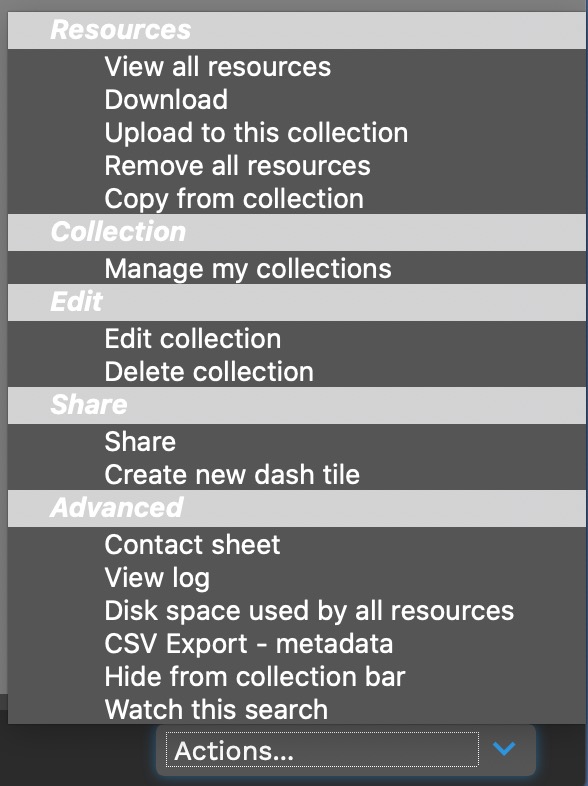
The Collections bar will display information about a collection whether or not its images are displayed in the window! It will show you the name of the “current” collection and how many items are in it. You can change collections without changing the images displayed in the window. The “Action” menu for Collections lets you execute actions on a Collection. If you want to display a Collection’s images in the browser window choose “View all resources”. Below are all the options.